
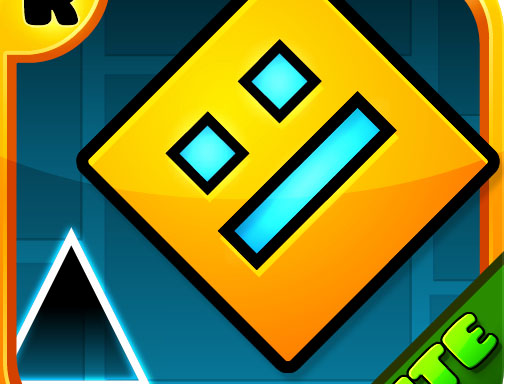
The current embedded game opens as Geo Dash 2. A cube moves forward automatically, and you use the mouse to jump across platforms and avoid obstacles. These instructions describe the version in this player.
About Geometry Dash Lite
Begin at the game menu by clicking the play arrow, choosing World 1 and selecting Level 1. The cube starts moving along the course automatically. Click inside the game to jump, or hold the mouse button to keep jumping as the cube reaches the ground.
Watch the upcoming platforms and obstacles while the cube moves. A crash restarts the level, and the attempt counter records your retries. The progress bar shows how far the current run has travelled. A short click and a held click produce different jump sequences, so pay attention to how long you keep the button down. For a slower jumping challenge with swipe controls, try OvO (LOVO).
This supplier listing uses the Geometry Dash Lite name, but the embedded title screen says Geo Dash 2. Features described for another release should not be assumed to exist here. In particular, the previous keyboard, ship and practice-mode instructions were not verified for this embedded version and have been removed.
Our Geometry Dash Lite levels and songs guide discusses the separate Geometry Dash Lite release. Its level list and modes are not a description of the Geo Dash 2 player on this page.
How to Play Geometry Dash Lite
- This embedded version opens as Geo Dash 2. Click the play arrow, choose World 1, then Level 1.
- The cube moves automatically. Click inside the game to jump, or hold the mouse button to keep jumping.
- Clear the platforms and obstacles. A crash restarts the level; the progress bar and attempt counter show your run.
Controls
| Key | Action |
|---|---|
| Mouse click / hold | Jump; hold to keep jumping |
Tips and Tricks
- Use a short mouse click for an individual jump; hold only when you want repeated jumps.
- Watch the progress bar to compare attempts and identify the obstacle where a run ended.
FAQ
Why does the title say Geo Dash 2?
That is the version currently delivered by the supplier embed. HopArcade’s page title remains Geometry Dash Lite, but controls and menus on this page were checked against the Geo Dash 2 build in the player.
How do I jump?
Click inside the game with the mouse. A short click is one jump; holding the button makes the cube keep jumping as it touches the ground.
How do I start Level 1?
Click the play arrow on the menu, choose World 1, then Level 1. The cube moves forward automatically—you only control jumps.
How do I clear hard sections more reliably?
Use short clicks for single jumps and hold only when you need repeated jumps. Watch the progress bar to see where runs die, then practise that obstacle on the next attempt.
Does a crash restart the whole game?
A crash restarts the current level and the attempt counter tracks retries. You are not sent back to World select unless you leave the level yourself.
Does progress save between levels?
Use any progress indicators shown in the embed. Clearing browser site data may reset local progress, so keep the same browser profile if you care about unlocks.
Is this the full paid Geometry Dash?
No. This is a browser embed (shown as Geo Dash 2) for quick unblocked play—not RobTop’s full app with every online level and editor feature.
Should I click or hold?
Short clicks for isolated spikes and gaps; hold when the rhythm needs continuous hopping. Mixing them up is the usual reason runs die on the same spike.
What does the progress bar show?
It shows how far you got through the level before crashing, so you can compare attempts and focus practice on the obstacle that ends runs.
Can I play Geometry Dash Lite unblocked at school?
Yes if HopArcade loads: it is a free browser rhythm-platform embed with mouse click/hold jumps and no install. Filtered networks will block the page entirely.




Comments (0)
Join the conversation
Log in to share tips about this game.
No comments yet. Be the first to share a tip!